












































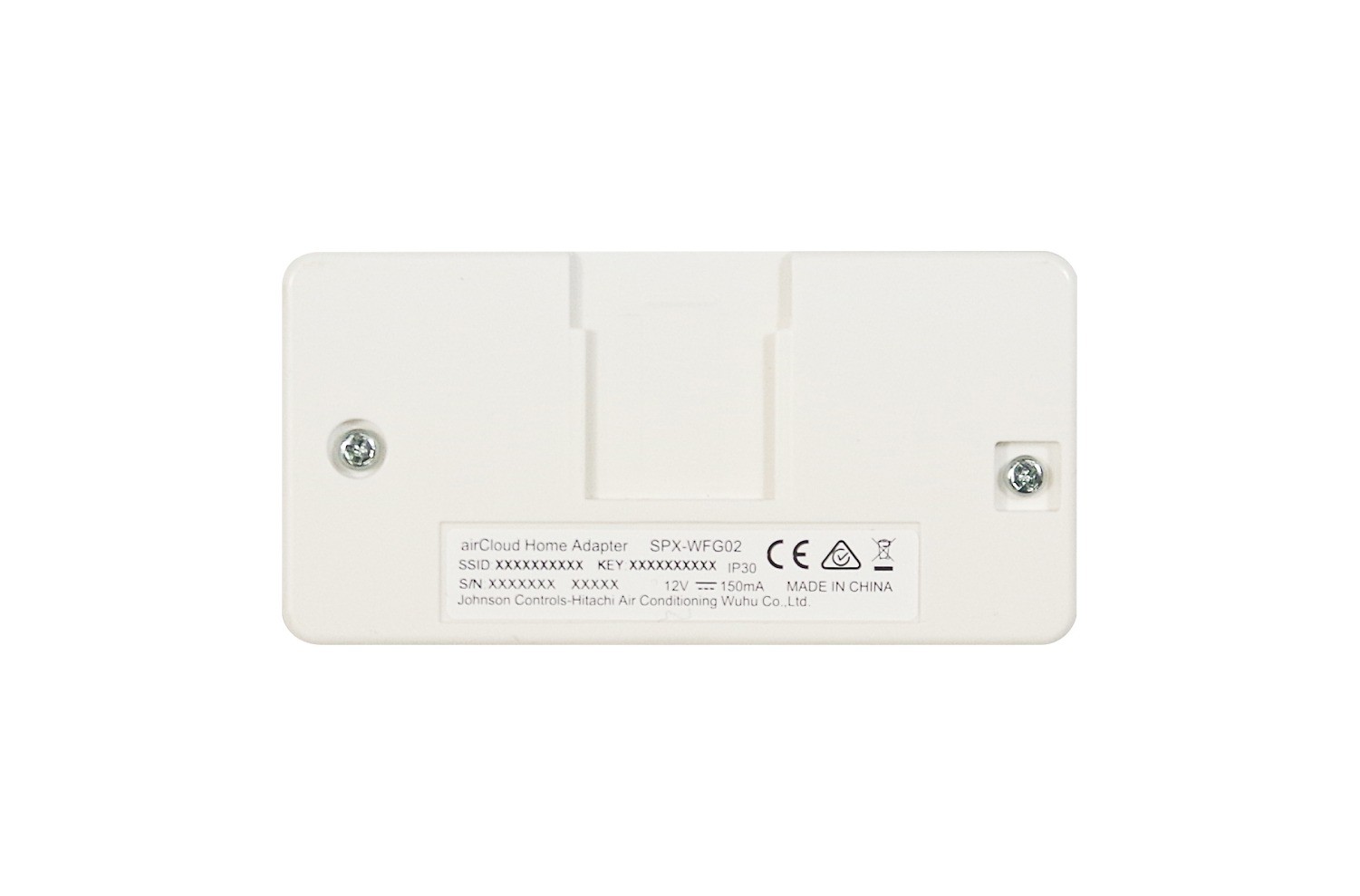
Adapter's credentials and pairing password are displayed on the backside.
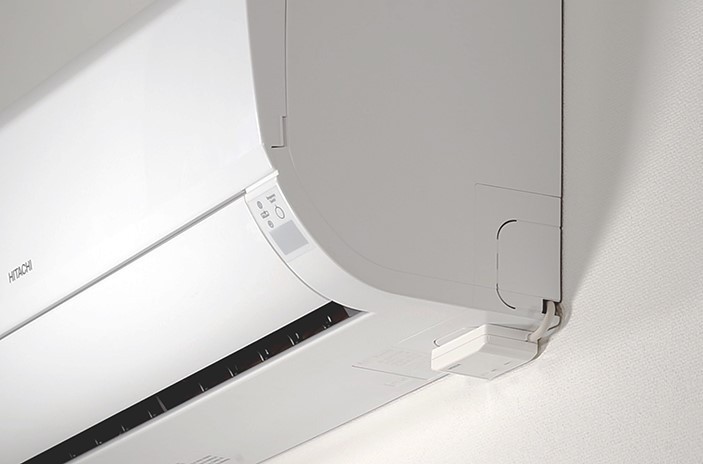
External installation for SPX-WFA & SPX-WFG02 (and SPX-WFG03 optional)
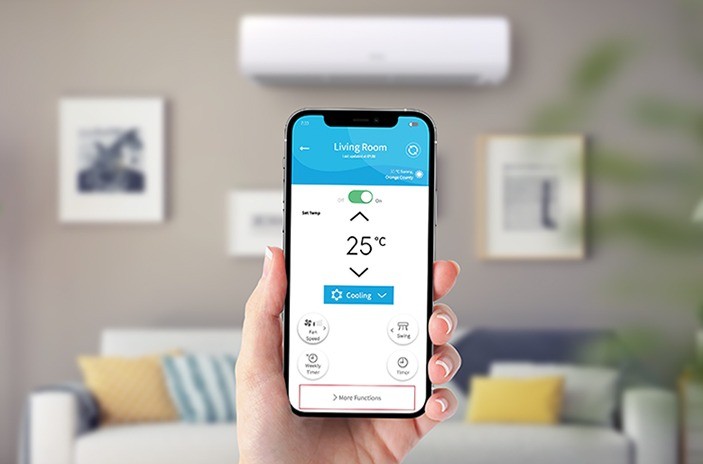


– airCloud Go wifi adapter
The airCloud Go Adapter is an accessory to connect Hitachi air conditioners to cloud-based app, via wifi connection. Use this compact plug & play device to enjoy a smarter air.
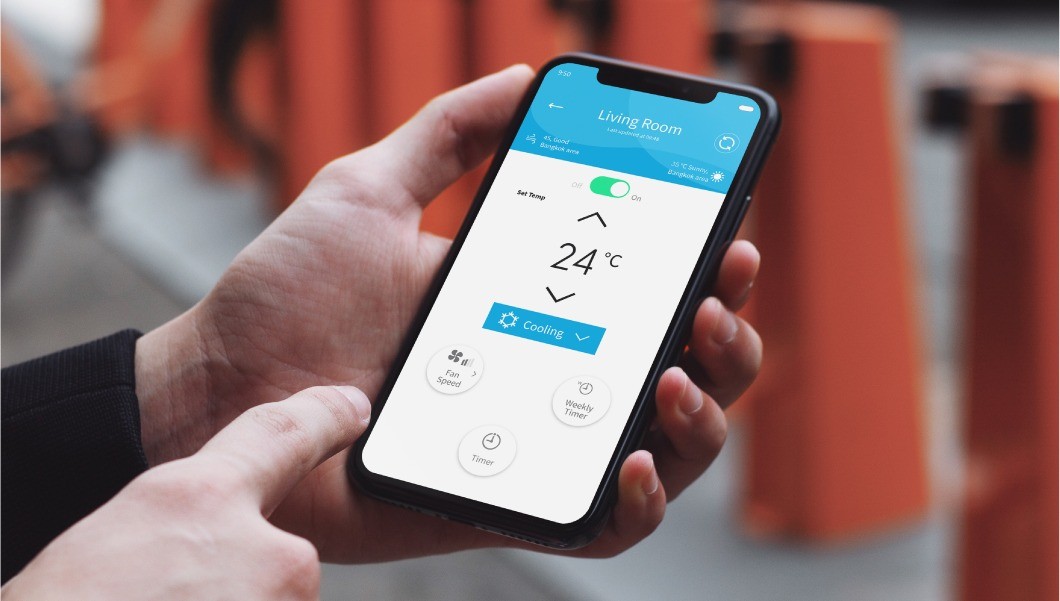
– Enjoy a connected air conditioner!
By connecting your air conditioner, you will be able to control your air conditioner with one touch anytime & anywhere.
● Turn on/off
● Change temperature, operation mode, air flow direction and fan speed
● Smart-Fence to link air conditioning to your location and automatize operation as you leave and arrive
● Energy Cost Estimator*
● FrostWash activation
● Voice command by Google Home or Alexa smart speaker
More information on airCloud Go app here.
*Energy Cost Estimator is available on selected air conditioner models only.
● Turn on/off
● Change temperature, operation mode, air flow direction and fan speed
● Smart-Fence to link air conditioning to your location and automatize operation as you leave and arrive
● Energy Cost Estimator*
● FrostWash activation
● Voice command by Google Home or Alexa smart speaker
More information on airCloud Go app here.
*Energy Cost Estimator is available on selected air conditioner models only.
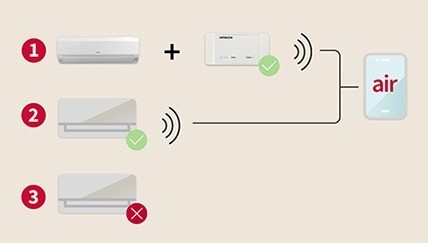
airCloud Go adapter is recommended for Type 1.
– For selected Hitachi air conditioners series
The airCloud adapter is designed for the following type of air conditioners:
(Type 1) Air conditioners compatible for wifi connection, requiring the addition of Hitachi aircloud adapter
The airCloud Go adapter is not suitable for the following types:
(Type 2) Air conditioners embedded with a wifi chip, which means they are ready to connect to airCloud without needing an adapter
(Type 3) Non-connectable air conditioners. airCloud Go cannot be paired with them
Check the list of compatible air conditioners here.
(Type 1) Air conditioners compatible for wifi connection, requiring the addition of Hitachi aircloud adapter
The airCloud Go adapter is not suitable for the following types:
(Type 2) Air conditioners embedded with a wifi chip, which means they are ready to connect to airCloud without needing an adapter
(Type 3) Non-connectable air conditioners. airCloud Go cannot be paired with them
Check the list of compatible air conditioners here.
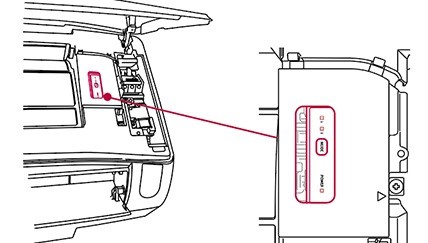
– Invisible installation...
(SPX-WFG03 recommended)
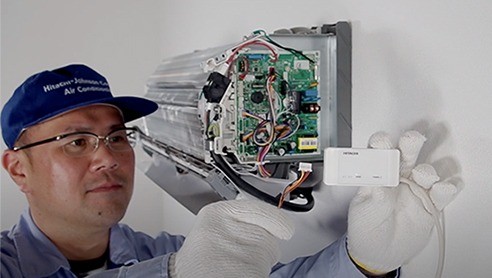
The SPX-WFG03 model can be placed inside the selected airHome air conditioner. The indoor unit has readily available space. This way, it's completely invisible.
The SPX-WFG03 model can be placed inside the selected airHome air conditioner. The indoor unit has readily available space. This way, it's completely invisible.
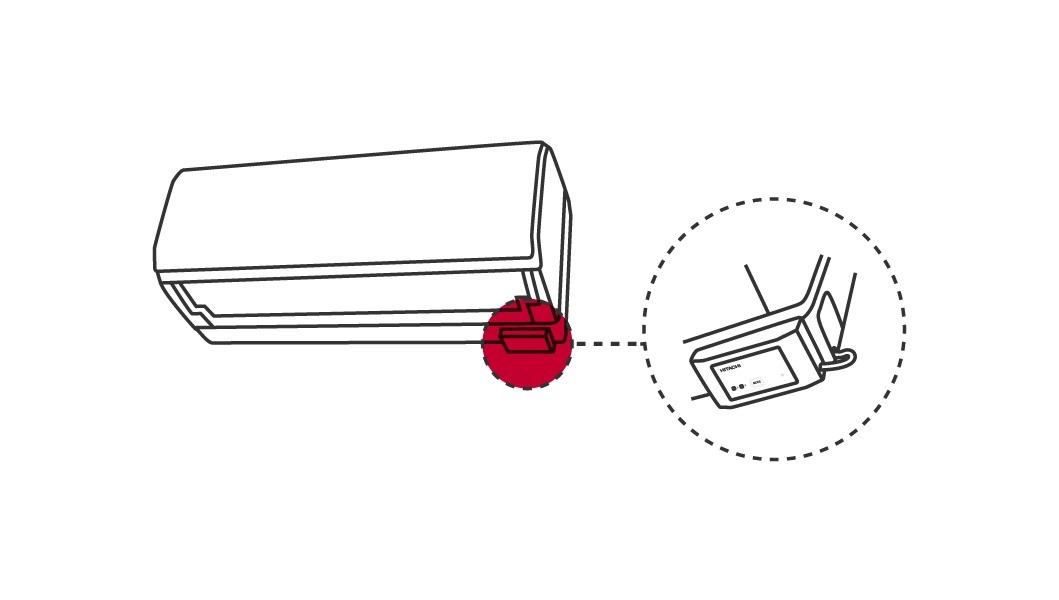
– .... or bottom external
(SPX-WFA & SPX-WFG02 & SPX-WFG03 optional)
airCloud Adapter can be placed onto the bottom of your air conditioner. The white color blends in with the air conditioner and makes it almost invisible to others.
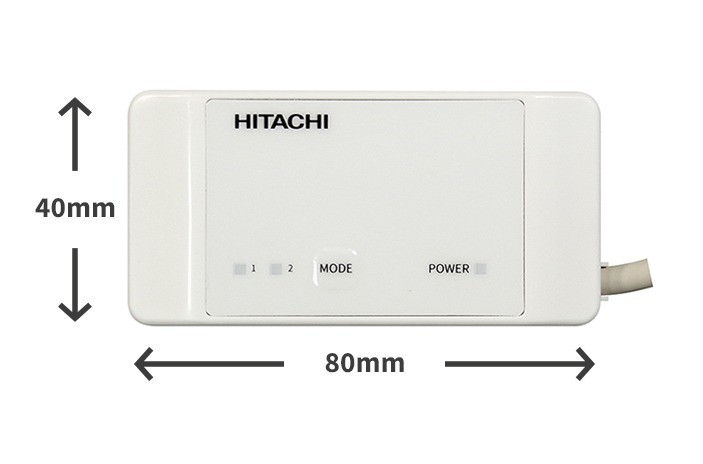
Small size: only 8cm long! (complete dimensions: 80x40x16.5mm)
airCloud Adapter can be placed onto the bottom of your air conditioner. The white color blends in with the air conditioner and makes it almost invisible to others.
Small size: only 8cm long! (complete dimensions: 80x40x16.5mm)
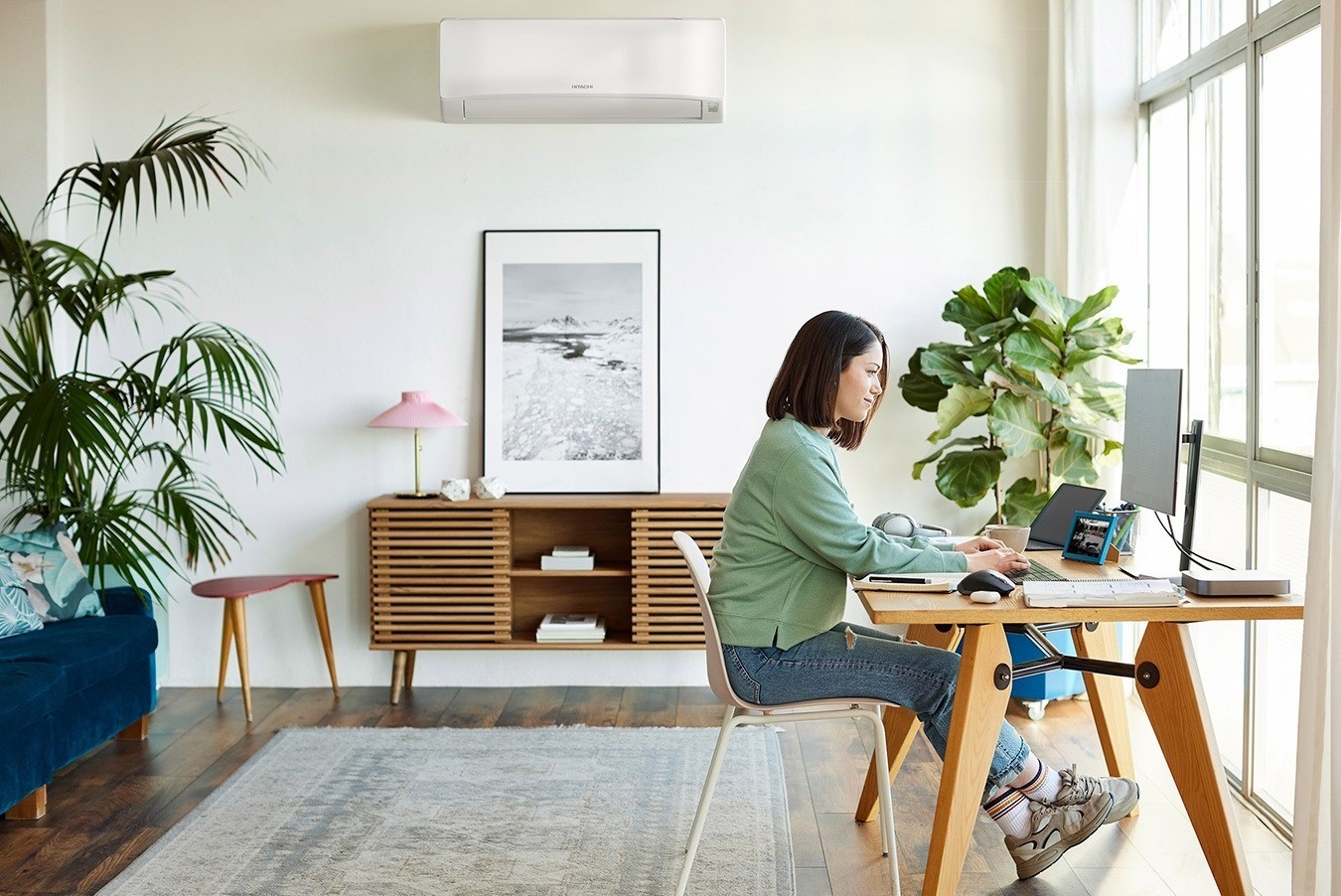
Invisible: adapter installed inside the air conditioner (SPX-WFG03)
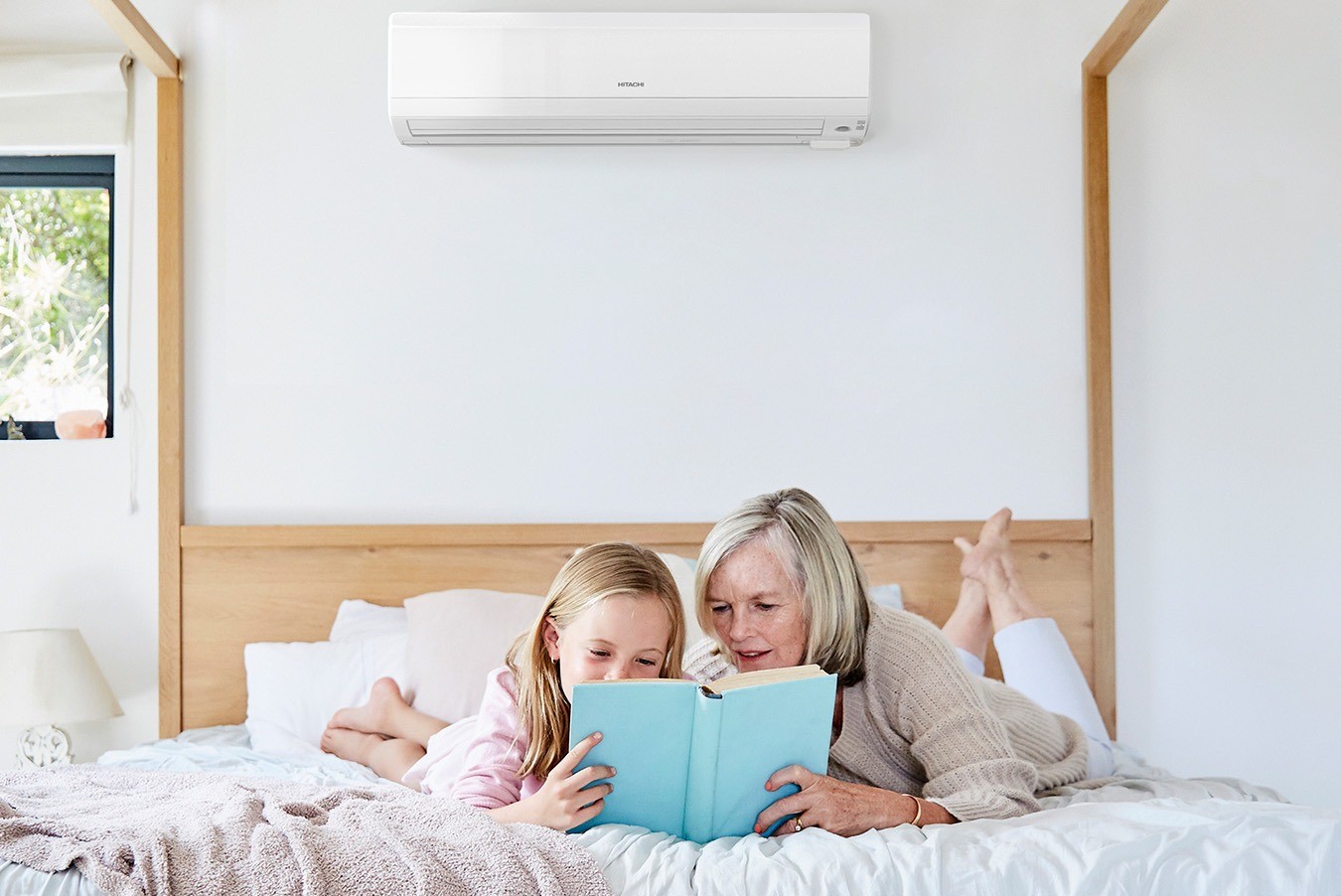
Discreet external installation (SPX-WFA & SPX-WFG02, and SPX-WFG03 optional)
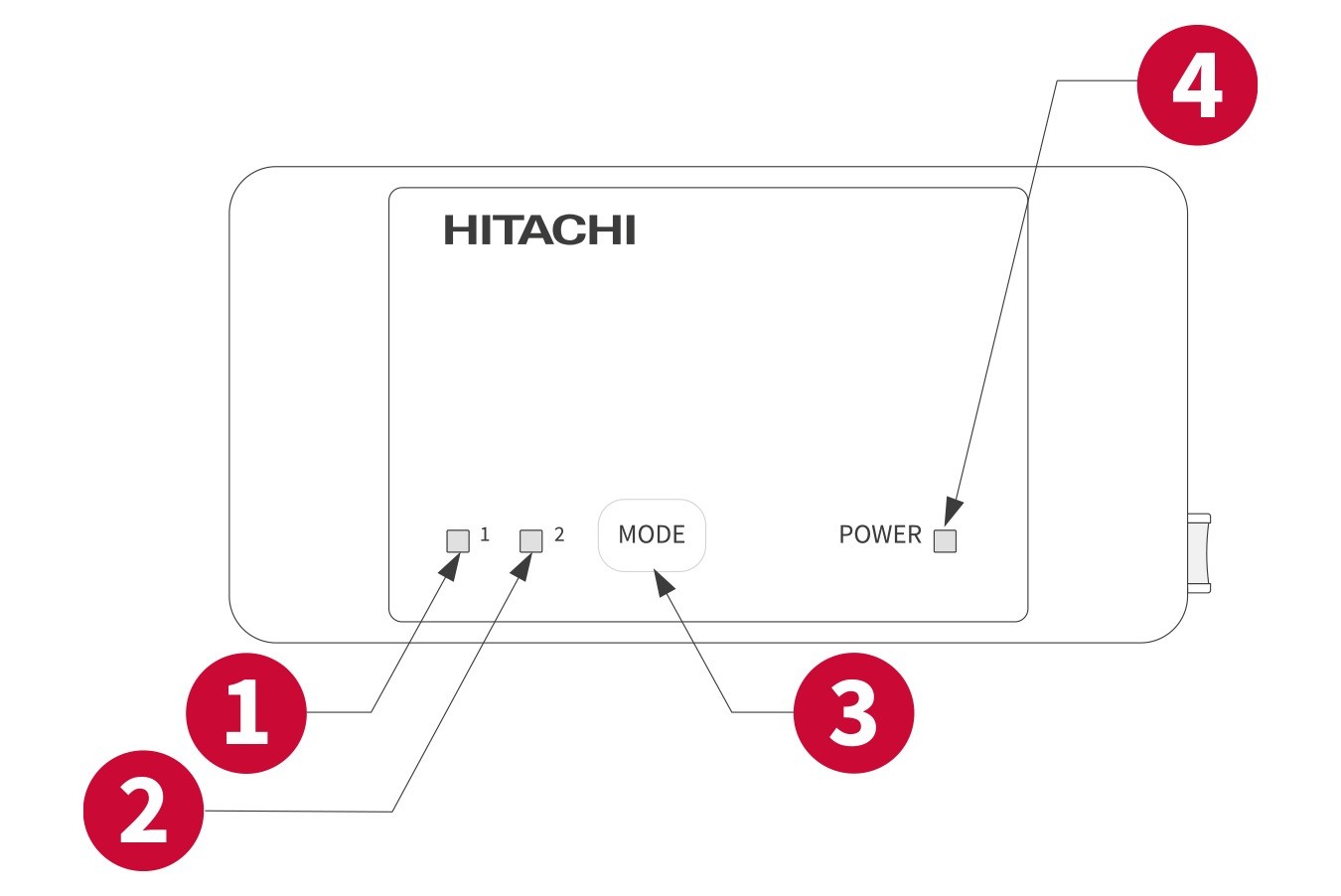
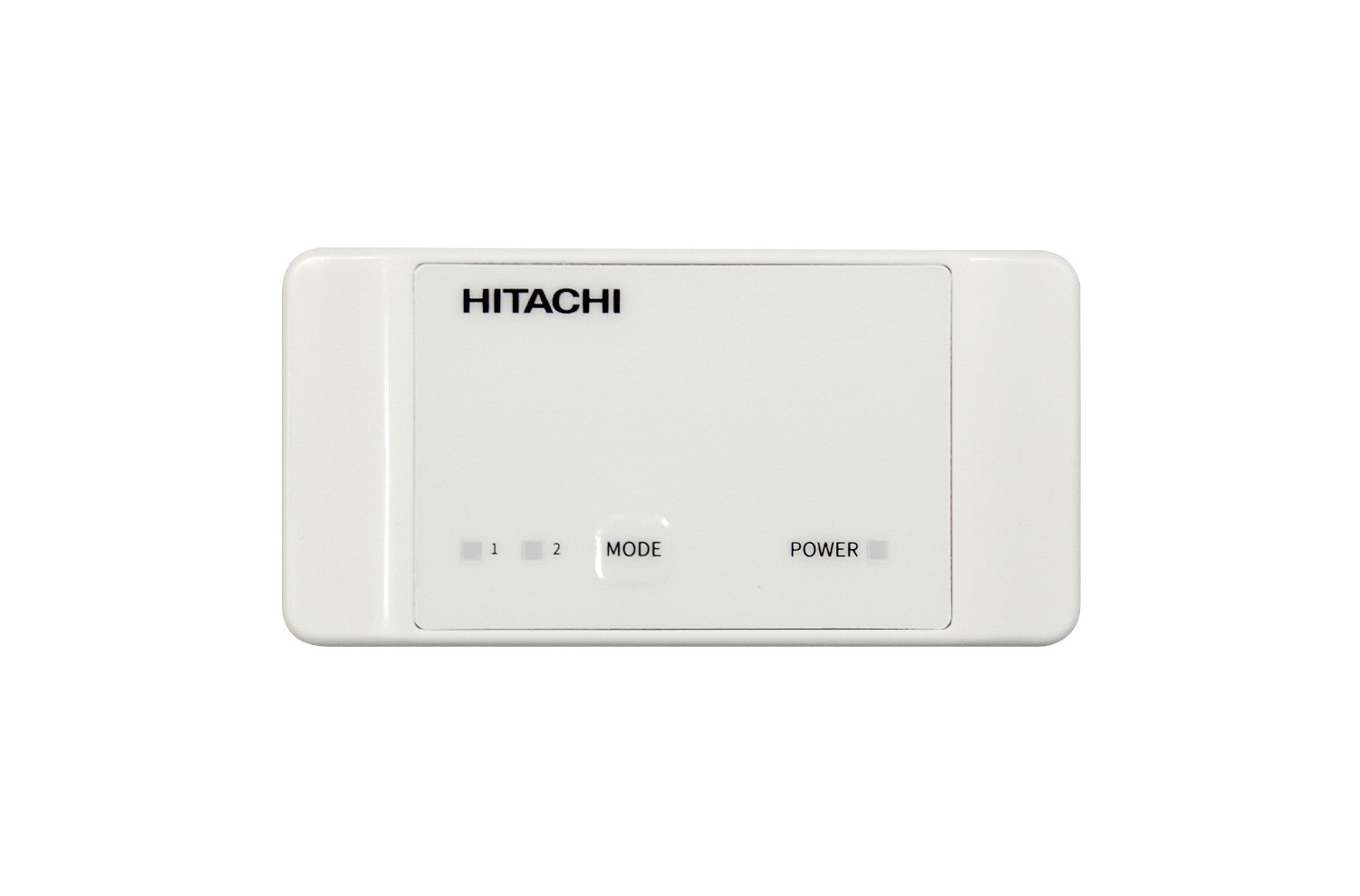
Front view
(1) Link LED 1, (2) Link LED 2, (3) Mode button, (4) Power LED
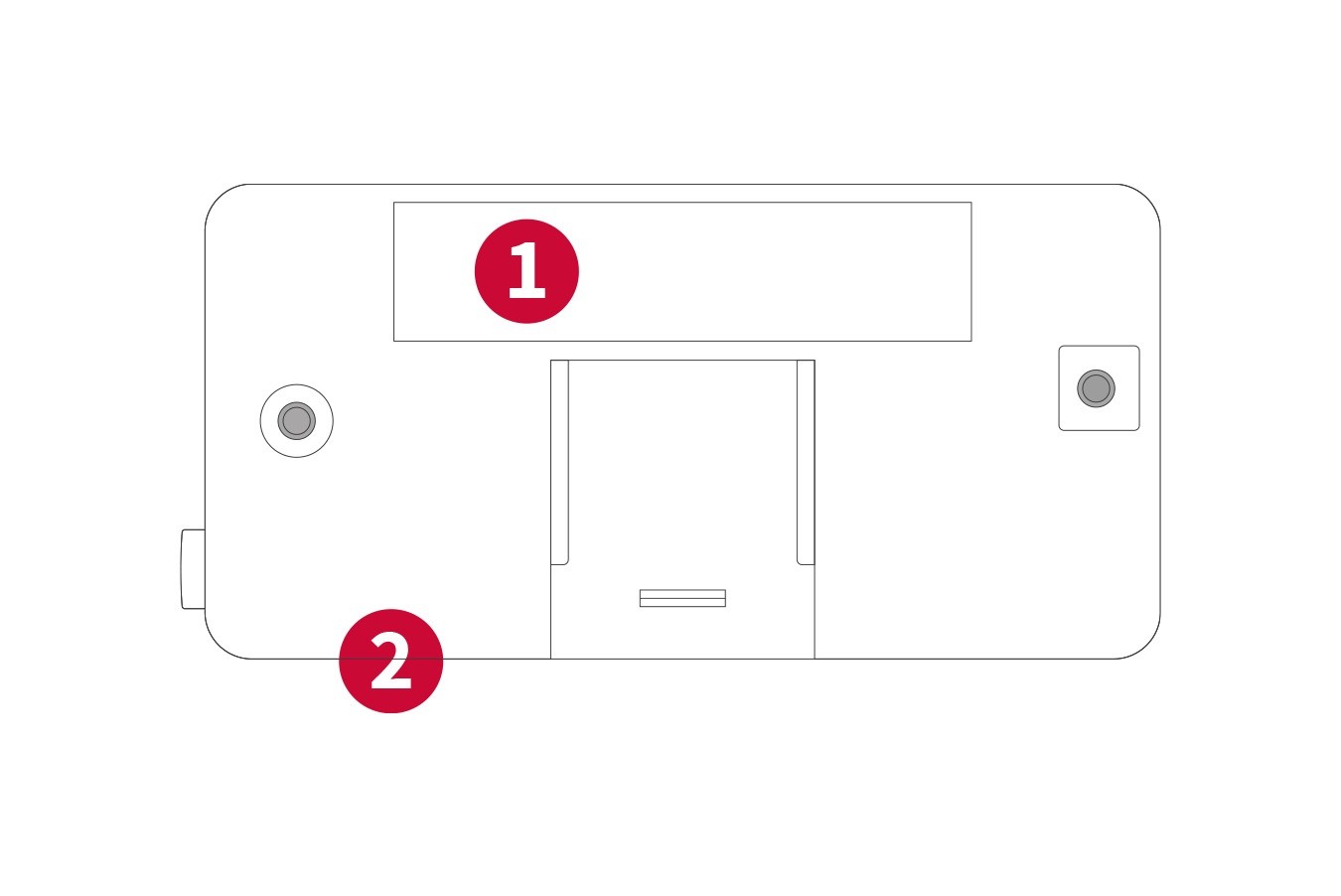
Rear view
(1) Unit label with, Model name, manufacturing No, SSID, KEY, (2) Fixing clip
1/4
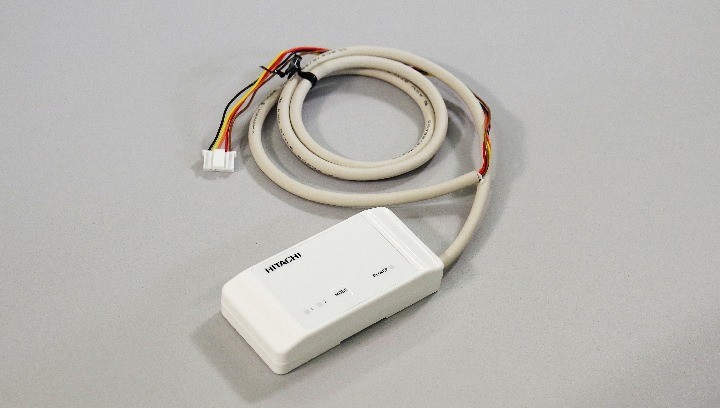
– Plug & play accessory
The adapter does not require an additional power source and works silently. The adapter includes the cable connecting to the air conditioning indoor unit.
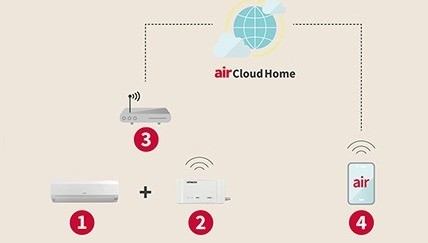
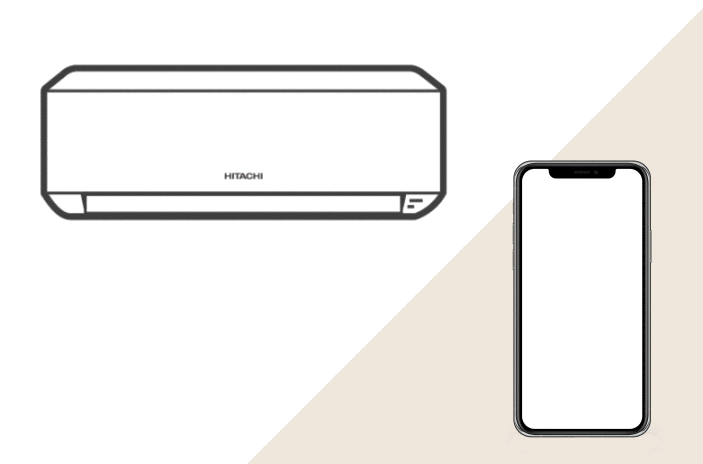
(1) Your Hitachi air conditioner (2) airCloud Adapter (3) Your home wireless wifi network (4) your smartphone & airCloud Go app
– Easy configuration
● airCloud Go connection is achieved via wifi network (1)
● Simplified configuration process is supported with clear step-by-step instructions.
● Air conditioner pairing can be made by QR code, supplied in the Adapter’s box.
WATCH VIDEO to pair airCloud Adapter to airCloud Go app
(1) Access to a 2.4GHz wifi network is necessary. Not connectable by Bluetooth or 3G/4G network.
● Simplified configuration process is supported with clear step-by-step instructions.
● Air conditioner pairing can be made by QR code, supplied in the Adapter’s box.
WATCH VIDEO to pair airCloud Adapter to airCloud Go app
(1) Access to a 2.4GHz wifi network is necessary. Not connectable by Bluetooth or 3G/4G network.
– Technical Specifications
description here. this is optional. *Additional local certifications may be available, please consult your distributor for your country’s certifications
airCloud Go Adapter
| SPX-WFG03 | SPX-WFG02 | SPX-WFA |
|---|

| Installation place |
| Dimensions | Length | MM |
| Width | mm | |
| Height | mm |
| Housing |
| Cable Length | mm |
| Power Supply (Power source not required) | V |
| Wireless LAN standard |
| Frequency Band | GHz |
| Wifi configuration |
| Certification (Contact your distributor for local certification) |
| Inside OR external at the bottom of the AC indoor unit |
| 80 |
| 40 |
| 16.5 |
| ABS plastic |
| 420 |
| 12 |
| IEEE 802.11b/g/n |
| 2.4 |
| AP and WPS |
| CE |
| External, at bottom of the AC indoor unit |
| 80 |
| 40 |
| 16.5 |
| ABS plastic |
| 1000 |
| 12 |
| IEEE 802.11b/g/n |
| 2.4 |
| AP and WPS |
| CE |
| External, at bottom of the AC indoor unit |
| 80 |
| 40 |
| 16.5 |
| ABS plastic |
| 1000 |
| 12 |
| IEEE 802.11b/g/n |
| 2.4 |
| AP and WPS |
| FCC, IC, ETL |

– Products compatible with this equipment

– Technical Specifications
description here. this is optional. *Additional local certifications may be available, please consult your distributor for your country’s certifications
airCloud Go Adapter
| SPX-WFG03 | SPX-WFG02 | SPX-WFA |
|---|
| Installation place |
| Dimensions | Length | MM |
| Width | mm | |
| Height | mm |
| Housing |
| Cable Length | mm |
| Power Supply (Power source not required) | V |
| Wireless LAN standard |
| Frequency Band | GHz |
| Wifi configuration |
| Certification (Contact your distributor for local certification) |
| Inside OR external at the bottom of the AC indoor unit |
| 80 |
| 40 |
| 16.5 |
| ABS plastic |
| 420 |
| 12 |
| IEEE 802.11b/g/n |
| 2.4 |
| AP and WPS |
| CE |
| External, at bottom of the AC indoor unit |
| 80 |
| 40 |
| 16.5 |
| ABS plastic |
| 1000 |
| 12 |
| IEEE 802.11b/g/n |
| 2.4 |
| AP and WPS |
| CE |
| External, at bottom of the AC indoor unit |
| 80 |
| 40 |
| 16.5 |
| ABS plastic |
| 1000 |
| 12 |
| IEEE 802.11b/g/n |
| 2.4 |
| AP and WPS |
| FCC, IC, ETL |


